Connect and select
Select CW. Short-press a multifunction button and turn the main knob to select a menu page; use Menu 3/5 KM/IMB for your key.
G106 provides a compact entry to field CW. This guide follows Radioddity’s expanded V1.5 manual and focuses on the actual menu pages, including the confusing CWR ratio label. It does not infer a CW text decoder from other Xiegu models.
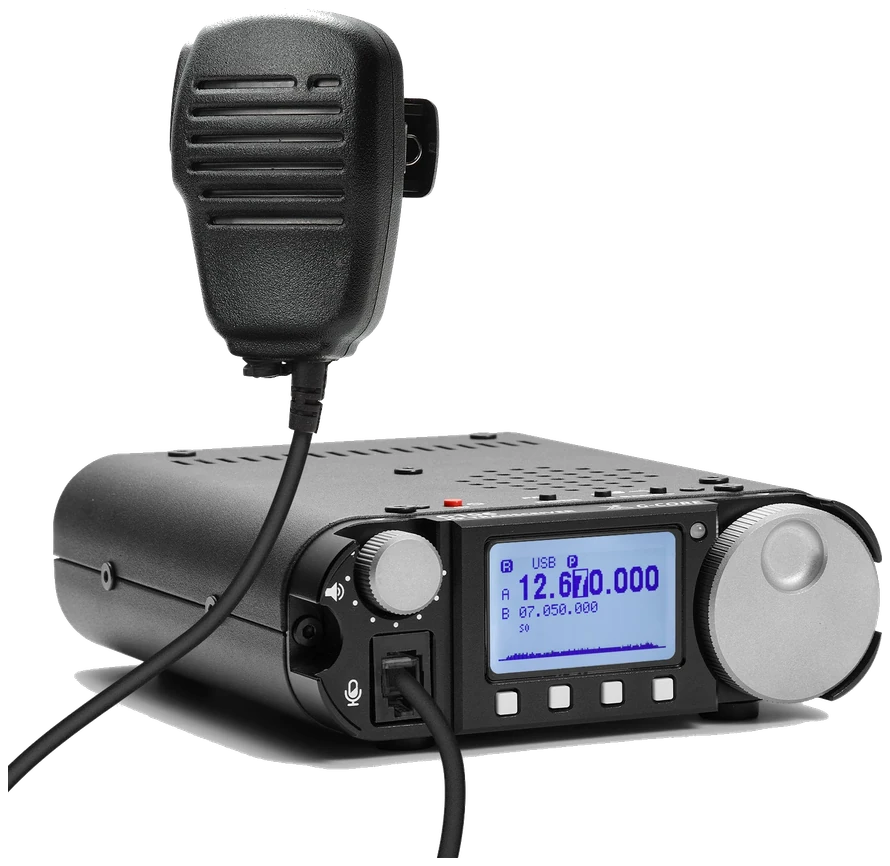
Radioddity distributor User Manual V1.5, December 2025; G106 original firmware, not G90/X6100/X6200 menus. The cover says v1.5 while p. 24 retains a v1.4 note; check VER against the release history. Checked 2026-09-20; original firmware; printed manual pages unless marked PDF.
Use this order as an operating checklist, not as a replacement for the radio manual. Controls and available options can vary by firmware and region.
Select CW. Short-press a multifunction button and turn the main knob to select a menu page; use Menu 3/5 KM/IMB for your key.
Turn QSK off and verify side tone without RF.
Set KS and CWT; use SAVE before leaving the menu.
Tune with CWF at 500 Hz, then narrow if needed.
Check the external antenna match and TXP, enable QSK and call once.
Search by setting or menu path. Manufacturer defaults and recommendations are labeled separately from CW599 advice; references identify the checked manual or software version.
Menu 3/5 > KM / IMBCW599 note: Choose manual for direct keying and automatic for a paddle, then check both contacts with QSK off. Use SAVE where offered; QUIT can leave changes unapplied.
Manual reference: Radioddity G106 User Manual V1.5 (December 2025), pp. 11, 15
Menu 3/5 > KSCW599 note: Adjust while listening to your own callsign with QSK off. Choose clean spacing over a high displayed speed, then check that a saved setting survives leaving the menu.
Manual reference: Radioddity G106 User Manual V1.5 (December 2025), pp. 11, 15
Menu 2/5 > CWTCW599 note: Choose a comfortable note and save it. Tune received CW to this note before tightening CWF; increasing volume does not fix an off-center signal.
Manual reference: Radioddity G106 User Manual V1.5 (December 2025), pp. 11, 15
Menu 2/5 > CWFCW599 note: Start with 500 Hz, tune accurately and try 250 Hz for a neighbor. Use 50 Hz only if it retains the wanted note; widen again when fading or tuning drift makes the signal disappear.
Manual reference: Radioddity G106 User Manual V1.5 (December 2025), pp. 11, 15
Menu 2/5 > QSKCW599 note: With QSK off the manual permits side-tone practice without CW RF. After checking the station, enable QSK for key-triggered transmit; the microphone PTT is not the CW sending control.
Manual reference: Radioddity G106 User Manual V1.5 (December 2025), pp. 11, 15
Menu 2/5 > CWRCW599 note: Here CWR is the ratio menu label in the G106 manual. Do not import another radio’s CW-reverse meaning; verify the menu description before changing the value.
Manual reference: Radioddity G106 User Manual V1.5 (December 2025), p. 11
Menu 4/5 > VERCW599 note: Read VER and use the matching manual. The release history identifies v1.2b03 as adding TXP and v1.1b01 as changing CW timing; v1.5 fixes a hand-microphone receive-spectrum issue. Check the installed version before relying on a menu option.
Manual reference: Radioddity G106 User Manual V1.5 (December 2025), pp. 16, 24–25
Menu 5/5 > TXPCW599 note: Use the installed firmware’s power choices and verify into a suitable load. The G106 needs a resonant antenna or an external tuner; it has no built-in automatic tuner to correct a poor field antenna match.
Manual reference: Radioddity G106 User Manual V1.5 (December 2025), pp. 11, 16, 25
No matching settings. Try a shorter search or clear the search and category.
These are original operator-oriented starting points. They are not factory presets and intentionally avoid claiming model-specific default values.
Check one change at a time.
Keep the wanted signal audible.
Leave a clear path back to receiving.
The checked documentation does not provide a built-in received-CW text workflow for G106. Its narrow CW filter and electronic keyer are not a receive-text decoder.
Some menu adjustments require SAVE. QUIT exits without storing those changes.
QSK off is the documented CW practice state. Confirm the station before enabling it.
Use the manufacturer-controlled product and support pages to verify your region, firmware, menus, connector wiring, operating limits, and safety information. CW599 does not host, mirror, or reproduce the manual.
Search and filters run locally in your browser and do not connect to a radio. Version 1.0 (2026-09-20): bilingual guide and sourced product photo. Revisions are retained in site Git and release backups; no separate archived page.