Connect and select
Connect the key with power off, then select CW. Use KEY TYPE to match a straight key, an external keyer or your paddle orientation.
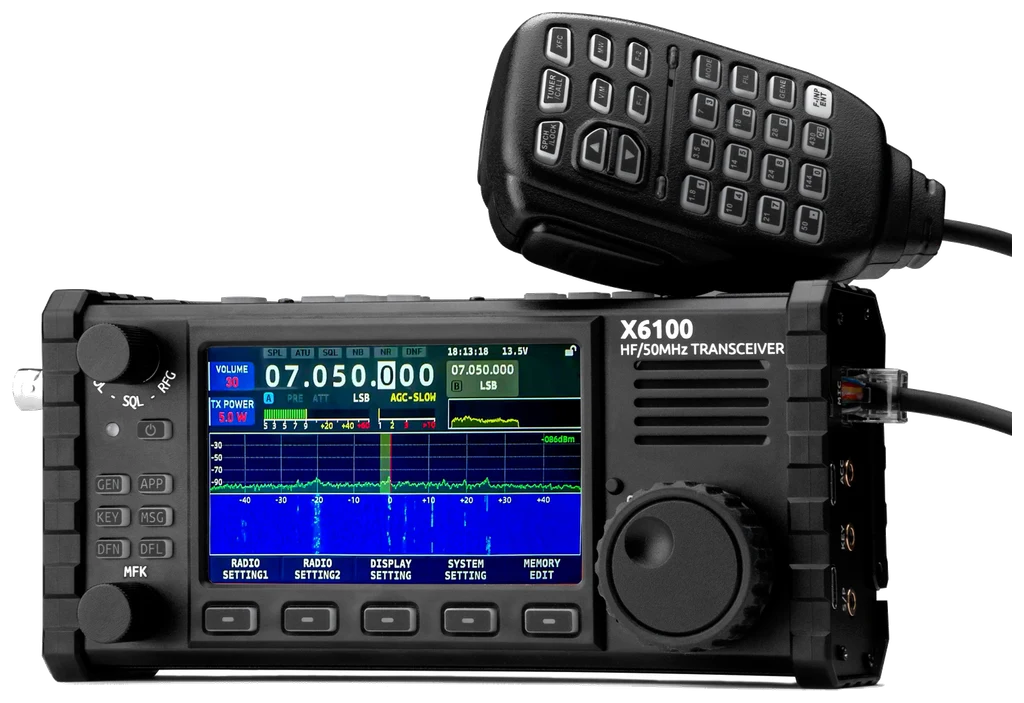
The X6100 can receive and display Morse through its built-in MODEM without a computer. Set up the keyer separately, then use the decoder as a second opinion while listening. Portable operation is easier when your key, filter and stored call have already been checked at home.
Checked 2026-09-09: original English X6100 manual hosted by Xiegu.eu (34 PDF pages; revision unspecified in this copy), Radioddity Extended v1.1.8 (September 2024, 143 PDF pages), and APP 1.2.0 release notes dated 2025-12-13. References use printed pages. Numerical defaults are explicitly attributed to the extended manual, not guaranteed for every firmware or region. Guide v1.0; no hardware test or third-party-firmware verification.
Use this order as an operating checklist, not as a replacement for the radio manual. Controls and available options can vary by firmware and region.
Connect the key with power off, then select CW. Use KEY TYPE to match a straight key, an external keyer or your paddle orientation.
Use KEY page 2 > CW TRAINER for sidetone practice. Confirm there is no RF, then adjust KEY SPEED, TONE and TONE LEVEL.
Find the target by ear before narrowing DFL. Begin with noise processing off so you can hear what each later change does.
Select APP > MODEM and set its MODE to CW. Check FC/TONE and SQL while comparing decoded text to the received note.
Review a text memory containing your own callsign. Confirm the selected mode, power and trainer state before an intended transmission; listen for replies between calls.
Yes: the built-in MODEM includes CW receive decoding. It displays a tentative transcription; KEY configures your sending hardware, while MSG stores outgoing text. None of these functions guarantees that a received callsign is correct.
Select CW and find a steady, isolated signal. Keep the wanted note inside the DFL passband.
Open APP > MODEM > MODE and select CW explicitly. A CW receiver setting alone does not confirm the MODEM selection.
Check FC/TONE while listening and compare repeated text after small tuning adjustments. Avoid changing pitch, bandwidth and squelch together.
Use modest SQL only after tuning. CLEAR removes old text so a fresh line shows whether the change helped; return to listening if characters remain unstable.
Check MODEM > MODE=CW, then FC/TONE and receive tuning. Widen DFL if the wanted note has fallen outside the passband.
Reduce modem SQL and compare with a wider filter. A clean, empty display is not proof that there is no station.
KEY SPEED controls paddle sending. Check the modem's settings and incoming signal separately; ask for a repeat when the received timing or signal is unclear.
Source reference: X6100 Original pp. 21–22, 25; Extended pp. 62–65
Search by control or menu path. References distinguish manufacturer manuals, distributor editions and firmware notes; documented defaults, source recommendations and CW599 advice are labeled separately.
KEY page 1 > KEY TYPECW599 note: Match the source of the timing: a straight key or external keyer uses manual operation, while a paddle uses the internal keyer. In trainer mode, check each side independently before trying an iambic squeeze.
Manual reference: X6100 Original pp. 8, 25; Extended pp. 66–67
KEY page 1 > KEY SPEEDCW599 note: Keep the speed low enough to leave deliberate character spaces. Test a word with both dots and dashes; if it feels hurried, lower speed rather than relying on the decoder to repair your timing.
KEY page 1 > IAMBICCW599 note: Use the release behaviour you have learned. Practise C and R with the trainer enabled and listen for an extra or missing element when you release the squeeze.
KEY page 1 > TONE / TONE LEVELCW599 note: Choose a comfortable note first, then reduce the level for your headphones. A listed default is not a recommended listening volume. Recheck when switching from the internal speaker to headphones.
KEY page 2 > CW TRAINER / QSK TIMECW599 note: Enable the trainer for practice and verify no transmit indication. For a real contact, disable it and choose a delay that allows comfortable receive recovery; an external amplifier may need a longer switching interval.
Manual reference: X6100 Original pp. 14, 25; Extended pp. 67–68
KEY page 2 > DI/DA RATIOCW599 note: Leave a standard ratio while building consistent spacing. Listen to a recording before adjusting it; a longer dash cannot replace a missing gap between characters.
DFL > FILTER1 / FILTER2 / FILTER3; press MFK to choose an edgeCW599 note: The two edges must leave the desired tone inside the passband. If the signal disappears, restore or widen this filter before changing the modem settings. Do not copy an SSB filter's numbers into a CW preset.
APP > MODEM > MODECW599 note: The receiver's mode and the modem selection are separate checks. If the radio sounds like CW but the text is wrong, confirm the modem is also set to CW before retuning. This is received-text decoding, not a keying score.
APP > MODEM > FC/TONE / RATE/SPEEDCW599 note: Use a steady signal and compare its note with the selected modem tone. Change one control at a time and check repeated text. The modem settings and your paddle's KEY SPEED serve different parts of the workflow.
APP > MODEM > second softkey group > SQL / CLEARCW599 note: If noise fills the text area, first tune and filter the signal, then try a little modem squelch. Excessive squelch can cut weak elements. Clear old text before checking whether the new adjustment helped.
MSG > text MSG1–5; send from APP > MODEM with CW selectedCW599 note: Text and voice memories are different. Read the saved callsign before using a slot, check the modem mode, and establish a short, controlled transmission before relying on a stored call outdoors.
Manual reference: X6100 Original pp. 22, 26; Extended pp. 64, 68–70
AGC; APP 1.2.0: GEN > RADIO SETTING1 > AGC SLOW / AGC FASTCW599 note: Do not transfer old AGC numbers into renamed time-constant fields. The 1.2.0 update also requires a factory reset; save your setup first and follow the download's full instructions, then recheck keying and memories.
Manual reference: X6100 Original p. 13; APP 1.2.0 release notes (2025-12-13)
No matching settings. Try a shorter search or clear the search and category.
These are original operator-oriented starting points. They are not factory presets and intentionally avoid claiming model-specific default values.
A calm setup for learning the radio.
A patient workflow for signals close to noise.
For operators who need quicker station turnaround.
No. APP > MODEM provides an internal CW receive decoder. A computer may provide other tools, but it is not required for the on-screen decoding described here.
Early prose refers to disabling QSK, while the KEY table and later extended manual expose CW TRAINER. Follow the controls on your firmware, enable the trainer for practice and verify that RF transmission is inhibited.
No. This guide follows Xiegu firmware and identified manufacturer/distributor documents. Community firmware may change menus and decoder behaviour; its controls must be checked separately.
Check hardware, region and firmware against the manufacturer and the clearly identified distributor resources. Manual languages are stated in the links. This page provides original operating explanations and does not host or reproduce manuals.
Search and filters run locally in your browser and do not connect to or control the radio. Version 1.0 (2026-09-09): bilingual CW guide, decoder workflow, real product cutout and source references. Revisions are retained in site Git and deployment backups; no separate archived page is available.