Connect and select your keyer type
Confirm the key or paddle is connected correctly, then set KEYER TYPE and dot/dash direction before calling.
An original CW599 workflow for getting this radio ready to listen and send. It does not reproduce the manufacturer manual; confirm exact labels, options, and firmware behavior with the official resource before transmitting.
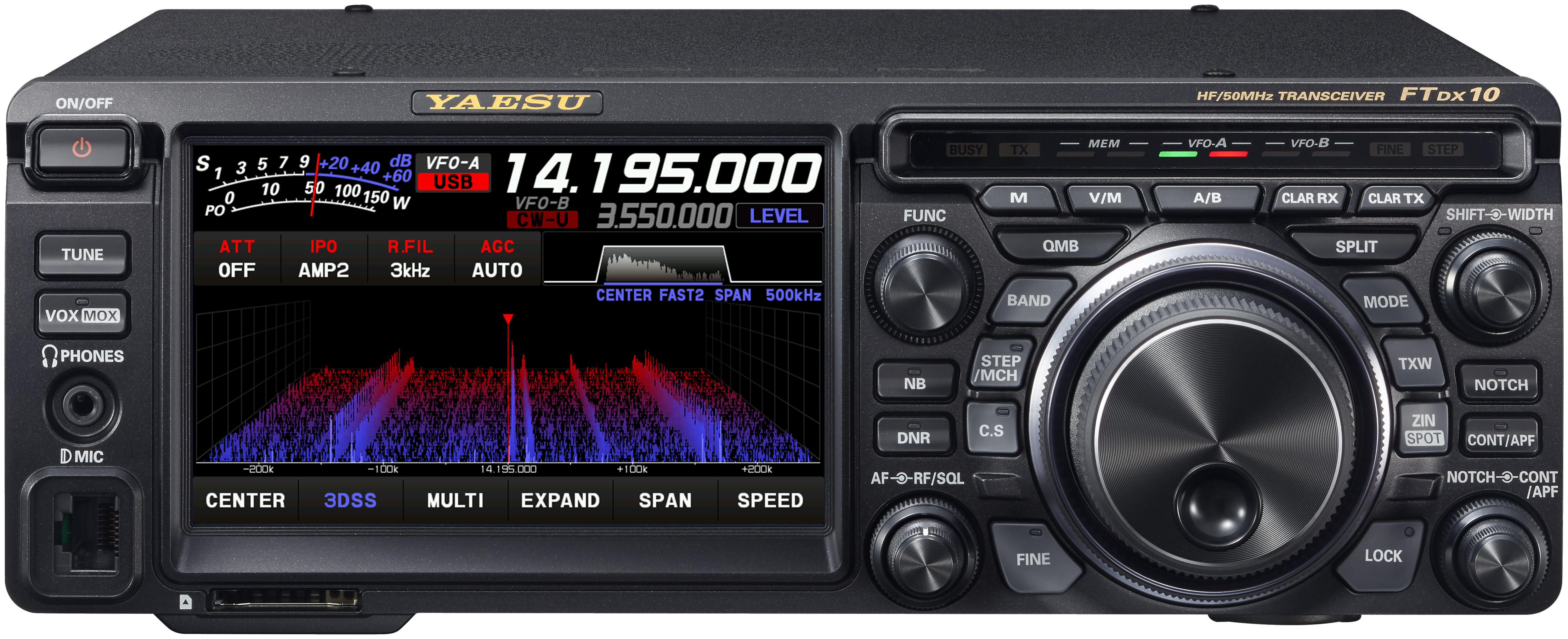
Use this order as an operating checklist, not as a replacement for the radio manual. Controls and available options can vary by firmware and region.
Confirm the key or paddle is connected correctly, then set KEYER TYPE and dot/dash direction before calling.
Use the FUNC controls for CW PITCH and CW SPEED. Start at a copying speed, not a target speed.
Set CW BK-IN TYPE to SEMI and verify the station returns to receive cleanly between characters.
Check CW WAVE SHAPE, APF width, and receive filtering one control at a time.
Only enable PC KEYING or memories after manual keying works exactly as expected.
Search the model-specific CW controls below. Menu labels and ranges are drawn from official documentation; the notes are original CW599 operating guidance.
[FUNC] > CW SPEEDCW599 note: Start low enough that the first exchange is readable without strain.
[FUNC] > CW PITCHCW599 note: Set a note you can distinguish easily from nearby signals.
MENU > CW > CW BK-IN TYPECW599 note: Use FULL only after confirming relay, amplifier, and receive switching behavior.
[FUNC] > BK-DELAYCW599 note: A longer delay is easier for a new station; shorten it only when ready.
MENU > CW > KEYER TYPECW599 note: Choose the keyer behavior that matches your paddle and sending habit.
MENU > CW > KEYER DOT/DASHCW599 note: Change only if dot and dash are reversed at the paddle.
MENU > CW > CW WEIGHTCW599 note: Keep the standard ratio until you can identify a repeatable reason to adjust it.
MENU > CW > CW WAVE SHAPECW599 note: Softer shaping can help keep a clean signal when conditions are busy.
MENU > CW > QSK DELAY TIMECW599 note: This affects fast break-in timing; test it with the full station.
MENU > CW > PC KEYINGCW599 note: Leave this off unless a tested computer interface is actually connected.
MENU > CW > APF WIDTHCW599 note: Use APF as a listening aid, not as a substitute for careful tuning.
No matching settings. Try a shorter search or clear the search and category.
These are original operator-oriented starting points. They are not factory presets and intentionally avoid claiming model-specific default values.
A calm setup for learning the radio.
A patient workflow for signals close to noise.
For operators who need quicker station turnaround.
Use the manufacturer-controlled product and support pages to verify your region, firmware, menus, connector wiring, operating limits, and safety information. CW599 does not host, mirror, or reproduce the manual.