Connect and select
Choose the correct KEY input and iambic settings.
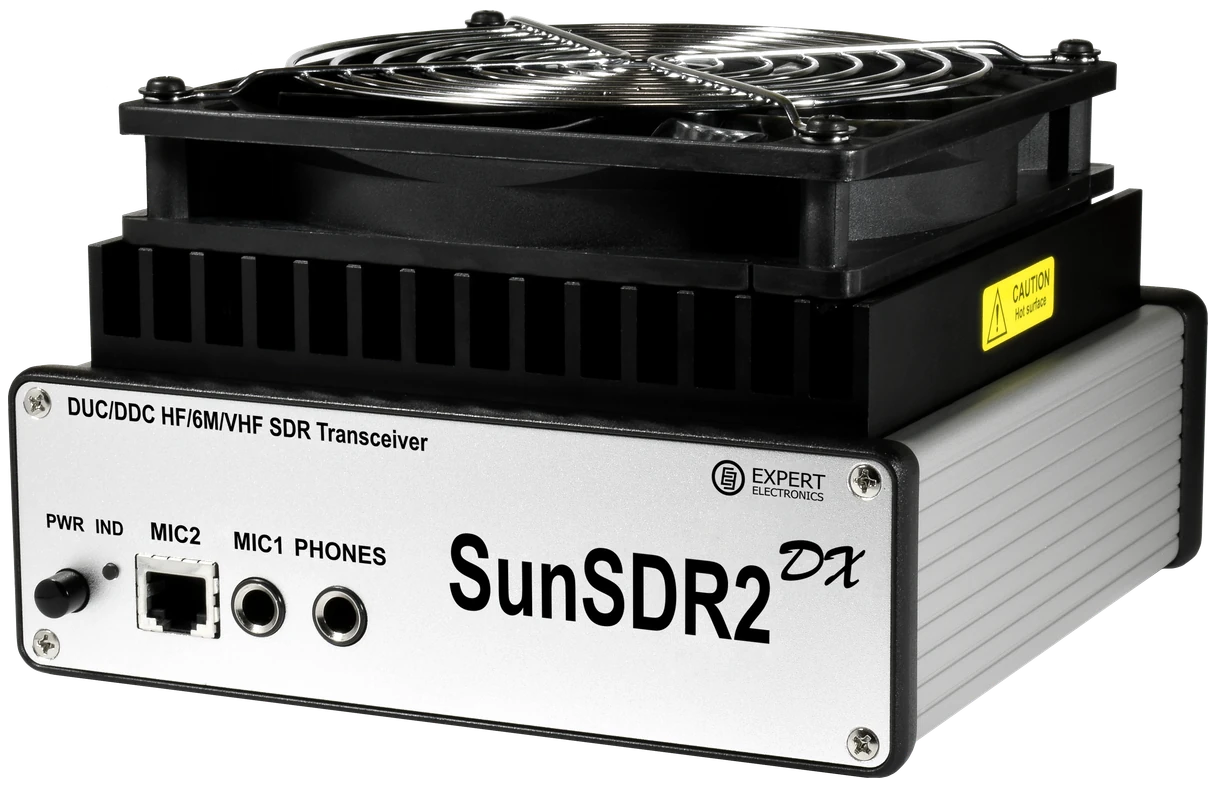
SunSDR2DX and SunSDR2PRO share ExpertSDR3 operating concepts, while their RF hardware and output specifications differ. This guide covers the desktop software’s CW controls and identifies local monitoring and remote macros separately; the product photograph shows SunSDR2DX.
English ExpertSDR3 manual v1.3.2, September 2026; DX/PRO hardware documentation remains separate. Checked 2026-10-07; original firmware; printed manual pages unless marked PDF.
Use this order as an operating checklist, not as a replacement for the radio manual. Controls and available options can vary by firmware and region.
Choose the correct KEY input and iambic settings.
Check the station with a dummy load and controlled output.
Set Speed, Pitch and the local monitor path.
Tune one signal and narrow the passband gradually.
Confirm SPLIT and both VFOs, then send once and listen.
Search by setting or menu path. Manufacturer defaults and recommendations are labeled separately from CW599 advice; references identify the checked manual or software version.
Break.In > right-click CW settings > Iambic / Type B / ReverseCW599 note: Use the settings for the connected KEY input and check separate elements. Reverse swaps dot/dash contacts; Type B changes squeeze release behavior. Change one at a time and listen to a short test.
Manual reference: ExpertSDR3 User Manual v1.3.2, pp. 83–84, 190–191 (PDF)
CW settings > Speed / Macros SpeedCW599 note: Speed controls the paddle keyer while Macros Speed applies to macro transmission. If a stored call sounds different from your hand sending, compare both controls rather than changing character weighting.
Manual reference: ExpertSDR3 User Manual v1.3.2, pp. 83–84, 190–191 (PDF)
Break.In; CW settings > Break InCW599 note: Break.In enables automatic transmission from the key. Set the receive recovery delay for the intended listening rhythm and verify RF into a dummy load before normal antenna operation.
Manual reference: ExpertSDR3 User Manual v1.3.2, pp. 83–84, 190–191 (PDF)
CW settings > PTT-CW delay / Macros DelayCW599 note: PTT-CW delay affects RF timing, not the local monitor tone. Follow the amplifier’s switching requirements and compare received keying with a separate monitor; a clean sidetone alone does not prove clean RF timing.
Manual reference: ExpertSDR3 User Manual v1.3.2, pp. 83–84, 190–191 (PDF)
CW settings > Pitch; receive filterCW599 note: Choose a comfortable pitch, tune the wanted signal to it, then narrow the receive passband. The documented CW engine uses CW-U; do not copy another radio’s lower-sideband assumption.
Manual reference: ExpertSDR3 User Manual v1.3.2, pp. 83–84, 190–191 (PDF)
Radio KEY/headphones or E-Coder2 KEY/headphonesCW599 note: For the documented lowest-latency path, connect the key and headphones to the same device. Network audio delay can disturb paddle timing; test the actual remote connection before a contact.
Manual reference: ExpertSDR3 User Manual v1.3.2, pp. 83–84, 190–191 (PDF)
SPLIT; right-click ShiftCW599 note: SPLIT assigns receive to A and transmit to B; switching it off returns transmission to A. Read both VFOs and the mode-specific shift before calling a split DX station.
Manual reference: ExpertSDR3 User Manual v1.3.2, pp. 83–84, 190–191 (PDF)
ExpertSDR3 release package and radio firmware updateCW599 note: Use the manufacturer’s matching software/firmware release. The revised CW core and firmware-played macros are not an instruction set for ExpertSDR2. After an update, recheck keying, audio routing and one macro.
Manual reference: ExpertSDR3 User Manual v1.3.2, pp. 83–84, 190–191 (PDF)
No matching settings. Try a shorter search or clear the search and category.
These are original operator-oriented starting points. They are not factory presets and intentionally avoid claiming model-specific default values.
Check one change at a time.
Keep the wanted signal audible.
Leave a clear path back to receiving.
The checked documentation does not provide a built-in received-CW text workflow for SunSDR2DX/PRO. The manual’s CW Skimmer integration refers to separate software, not an on-radio text decoder.
Network audio adds delay. Use the documented key/headphone connection on the same radio or E-Coder2 and test the complete path.
No. Shared software does not make the power amplifiers identical. Follow the hardware manual for the actual model.
Use the manufacturer-controlled product and support pages to verify your region, firmware, menus, connector wiring, operating limits, and safety information. CW599 does not host, mirror, or reproduce the manual.
Search and filters run locally in your browser and do not connect to a radio. Version 1.0 (2026-10-07): four-language guide and sourced product photo. Revisions are retained in site Git and release backups; no separate archived page.